Monday, July 19, 2010

What I learned today – importing mixed data types from Excel

Recently a coworker came up with an issue I never ran into before. He’s importing a large number of Excel spreadsheets into a SQL 2005 instance. One of the columns contains mixed data; 1, 2, 3, x, y, z for example. What he found is that if the first 20 or so rows are strictly numeric then the connection treats the whole column as numeric, and alphanumeric values are returned as NULLs. He’s querying using OPENROWSET, but it looks like this happens in SSIS as well. 

What his research found was that there’s a few registry keys that come into play. There’s also another property he needed to set in his connection string. When he adds “IMEX=1” it allows importing of mixed data types based on the the registry setting “ImportMixedTypes”. The default value is “text”. One drawback to text is that you’re limited to 255 characters. The only other available value is “Majority Type”. When you use Majority Type some of the values are scanned and the data type with the most values is used.

The number of rows scanned is based on the “TypeGuessRow” registry setting. By default it’s set to 8, but valid values are 0 to 16. If you set it to 0 then all rows are sampled. Setting it to a value between 1 and 16 samples that number.

Both keys can be found at HKEY_Local_Machine/Software/Microsoft/Jet/4.0/Engines/Excel/.  

Here are a few articles that explain the issue better.

http://jingyang.spaces.live.com/blog/cns!CC21A118B1B5250!318.entry?sa=781031802

http://www.instantpages.ltd.uk/ADODB_WP.htm

UPDATED 7/20/2010: You can read more about the actual issue here.

Wednesday, July 14, 2010

Changing the name of your SQL server

My company recently changed their standard naming conventions for computers, so yesterday I had to rename my workstation. Usually this isn’t a big deal, except that I’m running locally a default instance of SQL 2005 and a named instance of SQL 2008.Again, not a big deal since this is just my local playground. But I wanted to sync up the names.

Let’s say that my laptop was named “CHICAGO”. That makes the default instance also “CHICAGO'”, and my named instance “CHICAGO\KATMAI”. Now my laptop name changed to “NEWCHICAGO”. My SQL instances stay as “CHICAGO” and “CHICAGO\KATMAI”. How do you change them to match the new computer name?

Couldn’t be simpler, just execute two procedures. For the default instance.

USE master;
GO

EXEC sp_dropserver 'CHICAGO';
GO

EXEC sp_addserver 'NEWCHICAGO', local;
GO

It’s the same for a named instance. Just add the instance name.

USE master;
GO

EXEC sp_dropserver 'CHICAGO\KATMAI';
GO

EXEC sp_addserver 'NEWCHICAGO\KATMAI', local;
GO
Then, just restart the SQL service and you should see the name change.


Note, though, that this only changes the server name, not the instance name.  I haven’t had an opportunity to try that yet.

Tuesday, July 13, 2010

Another use for PowerShell and SQL

A few months ago I wrote a PowerShell script that looped through servers and databases  to save the properties inside an Excel spreadsheet (PowerShell and SQL). I thought it’s time to add another one.

One of the daily tasks I set up for myself as a SQL DBA is to go through the error logs for anything that may be an indicator of a problem. This is especially true on Sunday afternoons or Monday mornings, after my weekly DBCC CHECKDB job runs. I’ve configured the jobs to email me the results, but since I’m monitoring 10 instances they can be time consuming to read through. I usually just cut to the bottom, where DBCC reports the number of errors it finds. If the number of errors is 0, all is well and good. Otherwise, of course, further investigation is needed.

This seemed like a natural for a new PowerShell script. One of the great strengths of PowerShell is it’s ability to connect to as many remote servers as needed. And since I knew that the DBCC CHECKDB summary is written in the error log all I need to do is to read the logs. I had read this post by Buck Woody (blog | twitter) about doing almost exactly what I wanted to do. I merged his script with my earlier script and made a few other changes. My final code looks like this:

[System.Reflection.Assembly]::LoadWithPartialName('Microsoft.SqlServer.SMO') | out-null 

#Get SQL account information
$credential = Get-Credential
$loginName = $credential.UserName -replace("\\","")
$password = $credential.Password

#Get variables
$logDate = read-host("
Enter log date")
$searchPhrase = "
*"
$searchPhrase += read-host("
Enter search phrase")
$searchPhrase += "
*"
$srvlist = @(get-content "
C:\Power\SQL_Servers.txt")

#Loop through all instances
foreach ($instance in $srvlist)
{
$instance
$srv = New-Object ('Microsoft.SqlServer.Management.Smo.Server') $instance
$srv.ConnectionContext.LoginSecure = $false
$srv.ConnectionContext.set_Login($loginName)
$srv.ConnectionContext.set_SecurePassword($password)
$srv.ReadErrorLog(0) | where {$_.LogDate -gt $logDate -and $_.Text -like $searchPhrase}
}


Since I don’t always access the servers from a computer on the domain, I added login credentials. You can remove these if you want to use Windows authentication. After that I read a date and search phrase I type in. I found that this can come in handy when I want to change what I’m searching for. For instance, I can enter the phrase “DBCC CHECKDB” and the script will return the summaries based on the date I entered. Or I can search for “BACKUP” or “ERROR”, whatever my heart desires.

Tuesday, July 6, 2010

Stop SQL Agent when enabling Service Broker on msdb

I forget this every time I set up a new server.

When I set up database mail on anew server I usually get the message “Service Broker is not enabled on msdb. Do you want to enable it?” Clicking OK gives me an unresponsive SQL server. Running the command “ALTER DATABASE msdb SET Enable_Broker” runs forever with no message returned.

What I forget each and every time is that the SQL Agent is running. Checking the locks or running sp_who2 shows that my ALTER DATABASE is blocked by the process running the Agent. Simply stopping the Agent allows the statement to finish, whether from the query window or clicking OK in the dialog box mentioned earlier. Then I just restart the Agent and everything’s hunky-dory again.

Maybe now I’ll remember it.

Monday, July 5, 2010

My favorite SQL features

Recently I ran across a contest sponsored by Microsoft SQL Server MVP Ken Simmons (Blog | Twitter). One of the ways to enter the contest was to create a blog post listing favorite SQL features. But how do you select a favorite? That’s like asking someone to choose a favorite song. Like most things the the SQL world, the correct answer is “it depends”, usually on what I’m trying to do at the time.

So here’s my top 10 favorite SQL features and tips, in the order that they come to mind. I’m ignoring features I’m not currently using, like backup compression and data encryption, and limiting myself to those I use the most often.

  1. Integration with PowerShell. This is a great feature to administer multiple SQL instances easily. For those who haven’t been on the internet in the last few years, PowerShell is Microsoft’s new scripting language based on the .NET framework. And starting with SQL 2008, PowerShell became integrated with SQL. What does this mean to you as a DBA? Well, imagine yourself as the new head DBA for your company, and you’re now in charge of 100 SQL instances. Your boss tells you that your first task is to standardize all instances. How can you quickly view the properties of each server? With PowerShell and remoting, you can easily query each instance and save the results to an Excel spreadsheet for easy analysis. I gave an example of how I do it in an earlier blog post here.      
  2. Dynamic Management Views and Functions (DMV). Introduced with SQL 2005, DMVs are a great way to see how your server is performing. I’m not going to go into them in depth here since they’ve been written about by many others much better than I can. If you’re not familiar with them, do yourself a favor and start reading about them. They’ll make your life much easier.
  3. Storing queries in the toolbox. Like all DBAs, I’ve got a number of queries that I run over and over again. There’s numerous ways to store these for easy access, but my favorite for short one-line queries is to store them on the toolbox. Simply open the toolbox (Ctrl + Alt + x) and drag your query over. To recall it, open the toolbox, copy the desired query, and paste it into a new query window.
  4. Policies. Introduced in SQL 2008, Policy Based Management allows DBAs to manage multiple servers from a central server. Policies can standardize server configurations and check them for compliance.   
  5. Report Services. Built-in reporting capabilities for the same price as the database engine. ‘nuff said.
  6. IntelliSense. This feature gives the same statement completion that you see in Visual Studio, not surprising since SQL Management Studio uses the same IDE and Visual Studio. Unfortunately it doesn’t work against 2005 servers or earlier. It did in the earlier betas but was removed in the final release. Hopefully Microsoft will put it back.
  7. Object Explorer Details. You can now see details of different database objects using the details view (F7). It’s also configurable. Just right click on the screen and choose what columns you want to see.    image   
  8. Running queries against multiple instances. If you set up Registered Groups and register SQL instances by groups, you can execute a query against all servers in the group. You can select all groups, but you can’t choose to ignore instances inside the group. It’s all or nothing. But still, a significant timesaver when you need to run multiple statements against multiple instances.  
  9. Setting variable values. One of the nice things in the .NET world is the ability to use easily change the value of a variable; i += 1 for instance. Now you can do that in SQL too. Instead of 
  10. SET @i = @i + 1


    you can now do it like this 


    SET @i += 1


  11. SQL Community. Not technically part of SQL itself, but I feel it’s important nevertheless. I first began learning about SQL on my own and quickly found myself overwhelmed. There was no time to learn at work, and I needed to find the knowledge to do my job. I found the Chicago SQL User Group and found what I needed; experienced DBAs volunteering to talk about a subject they love. ChiSUG lead me to PASS, an international group with tons of free resources. I began following blogs written by the same people authoring the articles on PASS and presenting at the group meetings. Reading these blogs lead me to twitter, where I can follow SQL experts in real-time and ask for help with the #SQLhelp tag. Finally there’s SQL Saturdays, day-long events with SQL experts speaking on various topics. Notice the recurring theme about these resources; they are all free. I’m constantly amazed by the amount of content that SQL DBAs and developers make available for no cost, and the time they put in as volunteers at in-person events. To the entire SQL community, thank you. I wouldn’t be where I am today without your help. 

Tuesday, June 29, 2010

PIVOT compared to CASE for a crosstab result

Yesterday I was playing with a test query for a coworker using the PIVOT keyword when it dawned on me that I never compared it to using CASE statements. So, here’s the requirements.

There is a table called lab_results, with a partial DDL statement below

CREATE TABLE [dbo].[lab_results](
[lab_result_id] [char](12) NOT NULL,
[patient_id] [char](8) NOT NULL,
[test_code] [numeric](4, 0) NOT NULL,
[sample_date] [datetime] NULL,
.............................
.............................
CONSTRAINT [PK_lab_results] PRIMARY KEY CLUSTERED
(
[lab_result_id] ASC
) ON [PRIMARY]

CREATE NONCLUSTERED INDEX [IX_lab_results_3] ON [dbo].[lab_results]
(
[test_code] ASC,
[sample_date] ASC
) ON [Secondary]


This table has approximately 18 million rows, and you need to get a count of test codes during each year. Anything prior to 1/1/2006 would be counted together. The data would look something like this


image 


Prior to SQL 2005, I would use a series of CASE statements to perform a count of each test code


SELECT test_code
, SUM(CASE WHEN DATEPART(yy, sample_date) = 2010 THEN 1 END) AS [2010]
, SUM(CASE WHEN DATEPART(yy, sample_date) = 2009 THEN 1 END) AS [2009]
, SUM(CASE WHEN DATEPART(yy, sample_date) = 2008 THEN 1 END) AS [2008]
, SUM(CASE WHEN DATEPART(yy, sample_date) = 2007 THEN 1 END) AS [2007]
, SUM(CASE WHEN DATEPART(yy, sample_date) = 2006 THEN 1 END) AS [2006]
, SUM(CASE WHEN DATEPART(yy, sample_date) < 2006 THEN 1 END) AS [Pre2006]
FROM lab_results
GROUP BY test_code


Using the new (to SQL 2005 anyway) PIVOT keyword, I could rewrite the query like this


SELECT test_code, [2010], [2009], [2008], [2007], [2006], [2005] AS Pre2006
FROM
(
SELECT test_code, sample_date
, CASE WHEN DATEPART(yy, sample_date) < 2006 THEN 2005
ELSE DATEPART(yy, sample_date)
END AS LabResultYear
FROM lab_results
) AS tmp
PIVOT (COUNT(sample_date) FOR LabResultYear IN ([2010], [2009], [2008], [2007], [2006], [2005])) AS p;


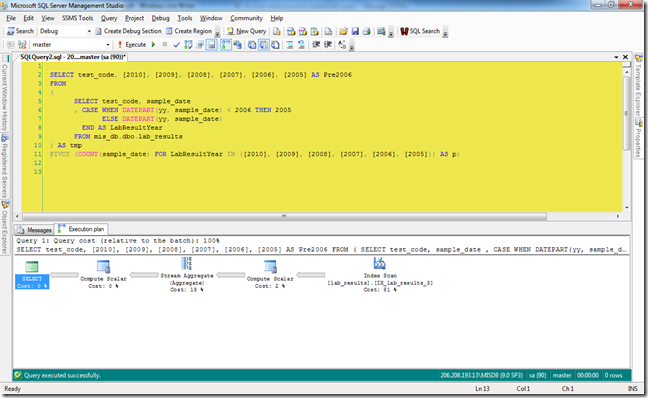
But I was never looked at the execution plan before yesterday to see how each was run. So I finally did, and here’s what I saw. First the plan for the CASE statement…


image 


…and then the plan for the PIVOT example.

 image 


At first glance they seem identical. Both are using the same operators and both are using an index seek on the non-clustered index. However there are small differences. The CASE statement completes 2 seconds faster than the PIVOT query, 45 seconds to 47. The index seek,while having an overall higher percentage of the whole, has the same operator costs as the PIVOT. The difference shows in the Stream Aggregate operator. The CASE operator is 10.8, which is 10% of the whole query. In the PIVOT example, the Stream Aggregate is 18% of the whole, and the operator cost is 19.8.


One other point about the PIVOT keyword. If you compare my code snippets to the screenshots of the executions, you’ll notice that I’m actually running against the master database and using a fully qualified name. If I ran it directly against the database where the table lives it would fail. Why? because that database, while running in on a SQL 2005 server, is still at compatibility level 7 (I know,I know). It doesn’t work unless you’re at level 9 or higher.

Monday, June 28, 2010

Report Server issues

I’ve had a lot of Report Server issues in the last few months. I thought we solved it once, only to see it come up again in a slightly different way. But I think I can put it all to bed now.

The first time was a few months ago, right when I left on vacation (isn’t that always the way?). The C drive on one of our reporting servers began to run out of space, filling up 6 – 8 GB in a matter of hours.

Before I get too far ahead of myself, let me describe our layout. We have four regional databases running SQL 2005 Standard Edition, each with data for that region. Two regions are in our corporate headquarters, the other two are in my office. We also have two SQL 2008 Standard Edition servers that run in a virtual environment, one in each datacenter. The reports hosted on each reporting center are identical except for their data sources; the corporate report server fetches data from the two corporate databases, and the local server does the same. The issue we had was on the server in the corporate datacenter.

Our first step was to check the temp files. We noticed a few small files and one massive, 8 GB file that we couldn’t delete without stopping and restarting the report service. A few hours later the massive file reappeared. All of these temp files were prefixed “RSTemp_”.

We moved the location of the temp files to a larger drive to give us more time before the largest temp file grew too large. By default the location is on C:\Program Files\Microsoft SQL Server\MSRS10.<<Instance Name>>\Reporting Services. You can change it by modifying the rsreportserver.config file and adding the entry to the <Service> tag:

    <Service>
---
<FileShareStorageLocation>
<Path>I:\RSTempFiles</Path>
</FileShareStorageLocation>

</Service>


That gave us extra space, but it didn’t solve the issue. A little more digging showed that we had a long running report that was also getting bad data. The query for the report was looking for a scalar value but was returning multiples. The query was also a long running query. What we found was happening was that the report execution was timing out, but the query was still active. The user didn’t see the timeout and constantly tried to re-run the report. Consequently this report was continuously paged out to disk, and it never died. Once we cleaned up the data and fixed the reports query, the problem hasn’t reappeared.


The next issue was related to performance. We noticed at certain times of day the report server would get really sluggish. Reports that would complete in 10 seconds would now take 10 minutes. Looking at the server resources showed no increase in CPU, IO, or memory usage. We didn’t see a repeat of the super-big temp file, though there was an increase in the number of temp files.


A little more investigation showed that, when the performance began to degrade, there were locks being held by one process clearing the sessions that blocked another process that was writing session data. We were finally able to track this to a third party application we use to monitor performance. It didn’t look like the software was configured properly.


In investigating both of these issues we looked at the data in the ExecutionLogStorage table in the ReportServer database. If you’re not familiar with this table, you should check out Robert Bruckner’s excellent post on ExecutionLog2 View - Analyzing and Optimizing Reports.


In the first issue, we were able to identify the report by seeing the pagination values in the additional information data. In the second, we could spot when the slowness would begin by seeing the TimeProcessing values rise.